Gateways
Change IP Address
Outdated: this section documents The Things Network V2, which is no longer maintained. See the documentation for The Things Stack V3, or browse the V2 docs index.
To check the network’s IP range, connect your computer and find its IP address. The first 3 numbers have to match that of the LR2. If they don’t, you’ll need to change the static IP address for the LR2 to be able to connect to the internet.
-
Connect to the LR2 via Winbox Tools.
-
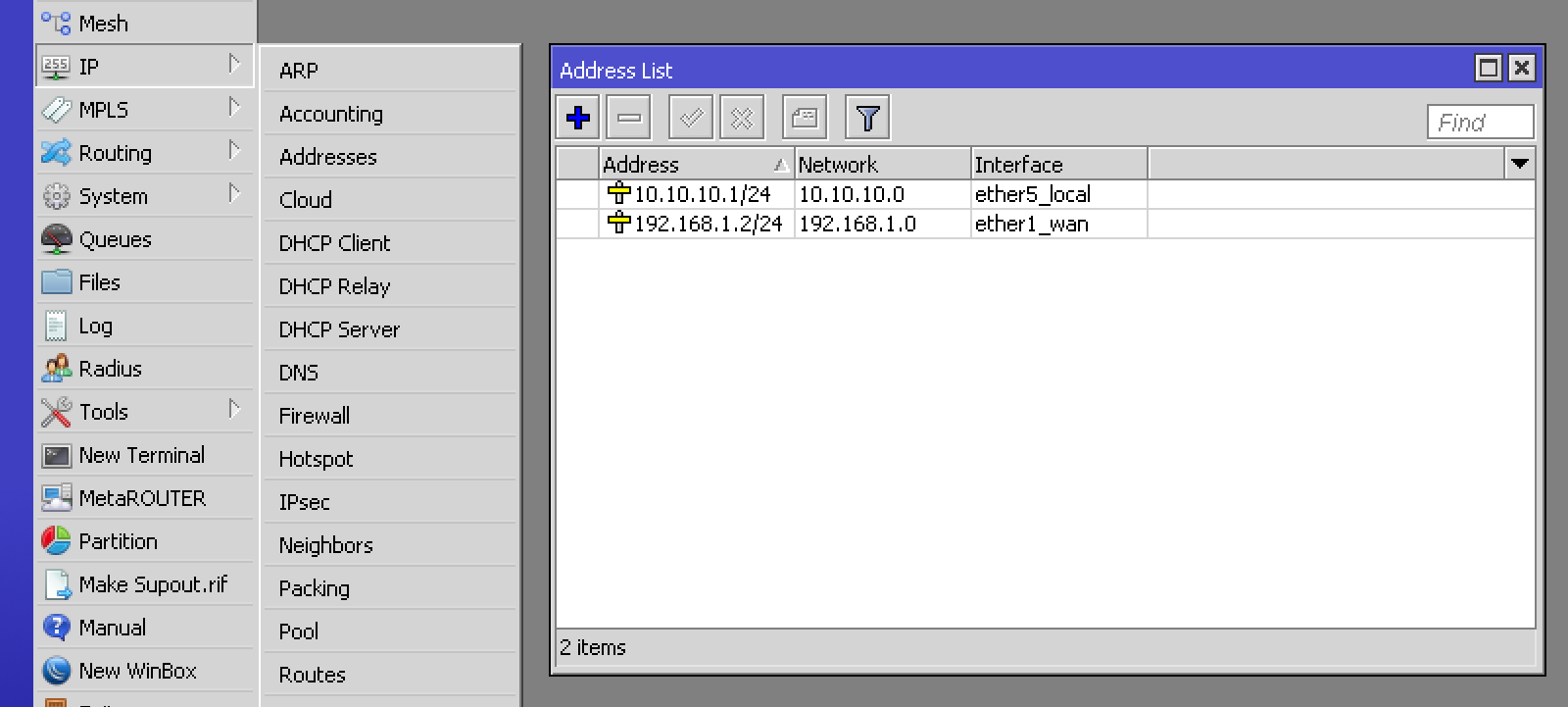
Go to IP > Addresses and double-click the ether1_wan row:
-
Set Address to a static IP address within your network range and end with
/24. Set Network to the same address but with0as last number: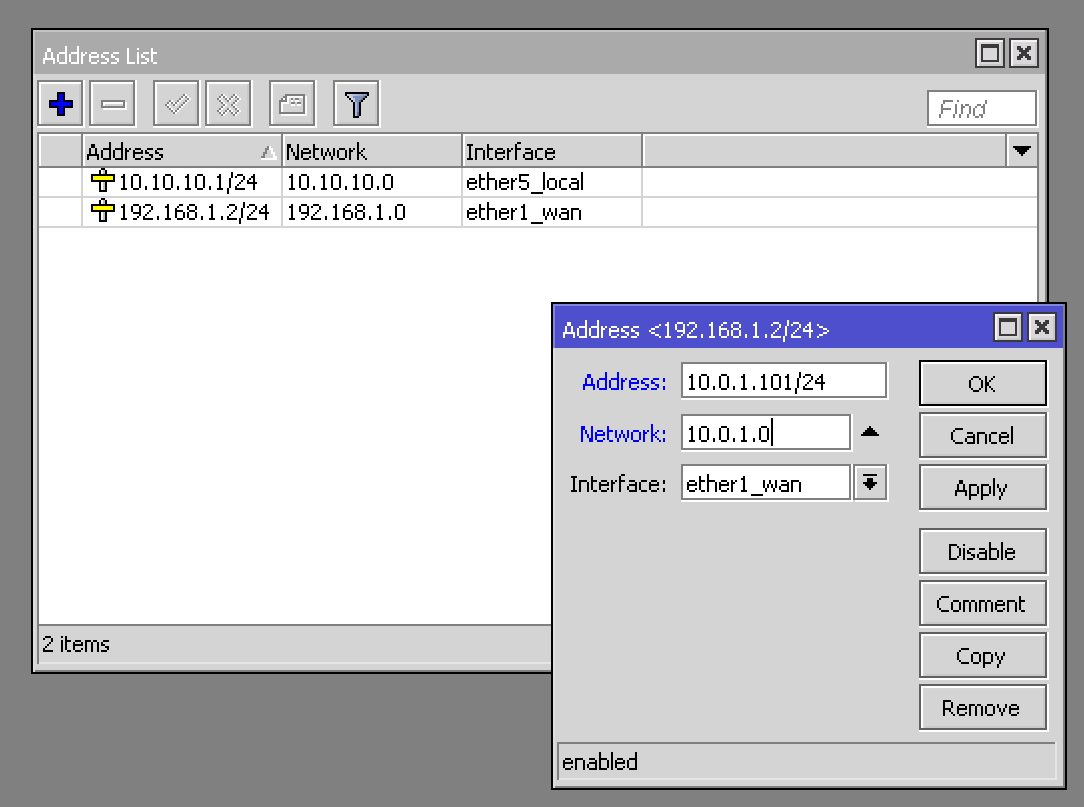
You probably also have a DHCP server on your network so make sure to use an IP outside the range it uses to hand out dynamic IP addresses.
-
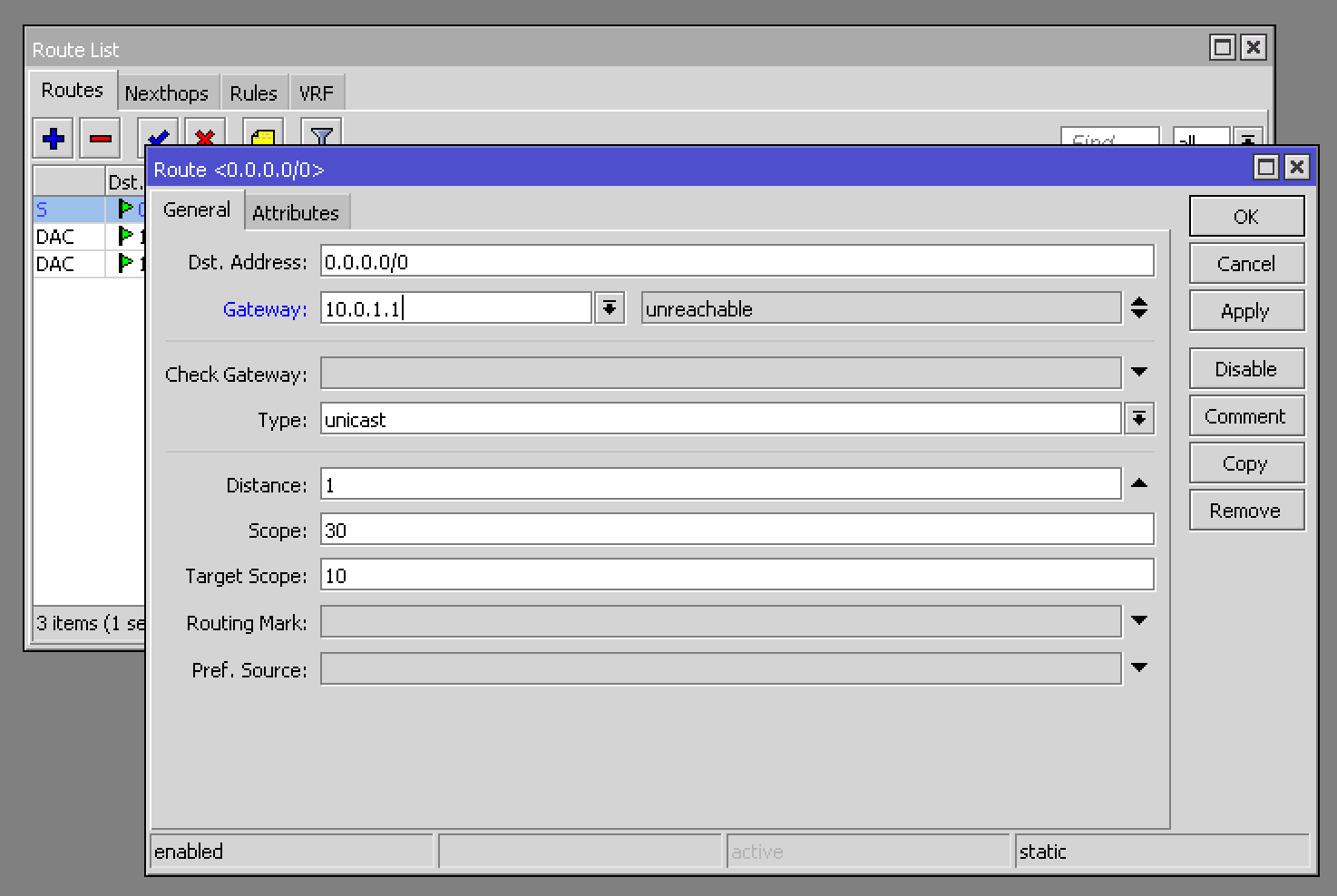
Go to IP > Routes and double-click the 0.0.0.0/0 row:
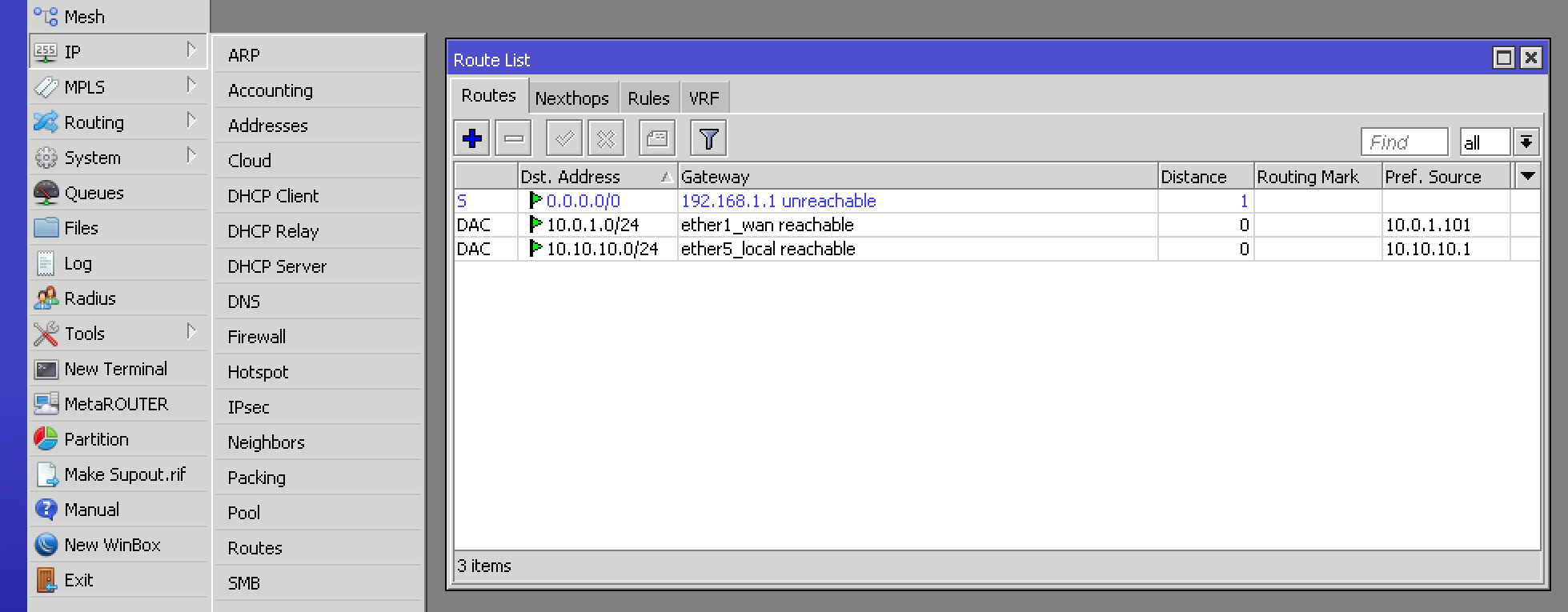
-
Set Gateway to your network’s gateway IP address. In most cases this identical to your local IP with
1as last number.